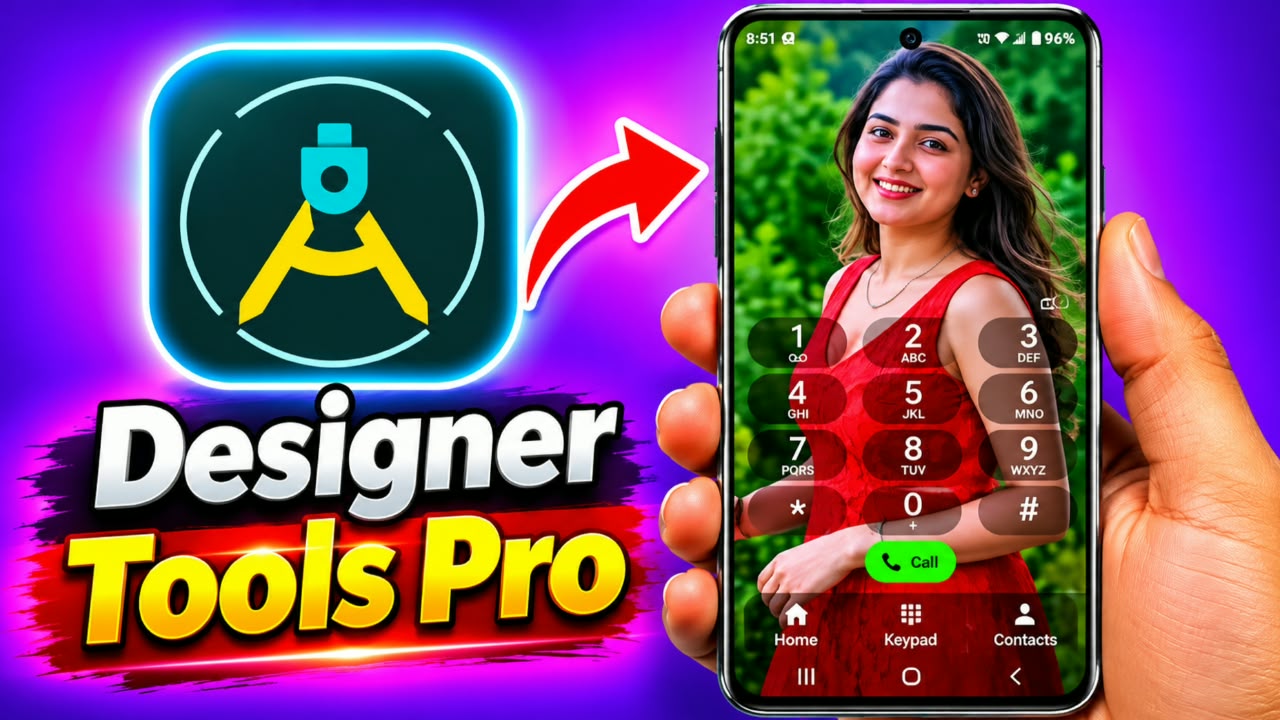
Designer Tools Pro App – What Is Designer Tools Pro and How to Use It on Android
Designer Tools Pro is a useful Android application designed for developers, designers, and users who want to customize and test different design elements on their smartphones. This app provides several helpful tools that make it easier to check screen layouts, measure spacing, identify colors, and test user interface designs directly on an Android device.If you are interested in mobile designing, app development, or customizing your phone’s display, Designer Tools Pro can be a helpful application. In this article, we will explain what Designer Tools Pro is, its main features, and how to use it step by step.
What Is Designer Tools Pro App?
Designer Tools Pro is an Android utility application that offers different design-related tools in one place. It helps users inspect the appearance of mobile applications and understand how different elements are positioned on the screen.The app is especially useful for UI and UX designers who want to check whether their designs look properly aligned on different screen sizes.You can use features such as grid overlays, mockup overlays, color pickers, and screen measurement tools, depending on the app version available on your device.
Main Features of Designer Tools Pro
Let’s understand some of the useful features of this application.
1. Grid Overlay
The Grid Overlay feature helps you check the alignment of different elements on your smartphone screen. You can display a grid over other applications and use it as a reference while designing or checking layouts.
2. Mockup Overlay
The Mockup Overlay feature allows you to display a reference image over your screen. It can help you compare an existing design with your actual application layout.
3. Color Picker
The Color Picker feature helps you identify colors from your screen. It is useful when you want to understand which colors are being used in a particular application or design.
4. Screen Measurement
You can use measurement-related tools to understand spacing and alignment between different screen elements. This is helpful for checking whether buttons, text, and other components are properly positioned.
5. Design Testing
Designer Tools Pro can help you test the visual appearance of applications without repeatedly switching between different devices.
How to Download Designer Tools Pro App
If you want to use Designer Tools Pro on your Android smartphone, follow these steps.
-
First, open the Google Play Store on your smartphone.
-
Search for Designer Tools Pro.
-
Check the application name and developer details.
-
Read the available reviews and app information.
-
If the official app is available, tap the Install button.
-
Wait until the installation process is completed.
-
Now open the application.
Always download applications from trusted sources and check their permissions before using them.
How to Use Designer Tools Pro App
Now let’s understand how to use Designer Tools Pro on an Android phone.
Step 1: Open the Application
First, open Designer Tools Pro after installing it. You will see the available design tools on the main screen. Depending on your version, different options may be displayed.
Step 2: Enable Grid Overlay
If you want to check the alignment of your mobile screen, open the Grid Overlay option. Enable the feature and adjust the grid settings if available.Now open another application. You may see a grid displayed over the screen, which can help you check the positioning of different elements.
Step 3: Use Mockup Overlay
If you have a reference design image, you can use the Mockup Overlay feature.Select the mockup option, choose your reference image if supported, and adjust its position or transparency. Now compare the reference design with the actual screen.
Step 4: Check Screen Colors
Open the Color Picker feature if it is available in your version. Use the available controls to inspect colors displayed on your screen.This feature can be helpful when selecting matching colors for your own mobile application or website design.
Step 5: Adjust Design Settings
You can explore the available settings to adjust grid size, overlay appearance, transparency, and other supported options.Make small adjustments and check how your screen looks after each change.
Step 6: Disable the Overlay
After completing your design testing, return to Designer Tools Pro and turn off the active overlay features.This will restore your normal screen appearance.
Why Should You Use Designer Tools Pro?
There are several reasons why users may find this application useful.
-
Helps check mobile screen alignment.
-
Makes UI design testing easier.
-
Provides useful visual reference tools.
-
Helps compare mockups with actual applications.
-
Useful for Android developers and designers.
-
Helps understand spacing and screen layouts.
-
Provides multiple design utilities in one application.
Is Designer Tools Pro Safe to Use?
Designer Tools Pro is a design utility, but you should always check its permissions before enabling additional features.Some overlay functions may require permission to display content over other apps. Only enable permissions that are necessary for the feature you want to use.Avoid installing modified APK files from unknown websites. Also, remember that overlay permissions can affect how other applications appear on your screen.
Who Can Use Designer Tools Pro?
This application can be useful for different types of users. Android developers can use it to check application layouts, UI designers can compare screen designs, and beginners can learn about alignment, spacing, and color combinations.Even if you are not a professional designer, you can explore its features to understand how mobile application interfaces are designed.