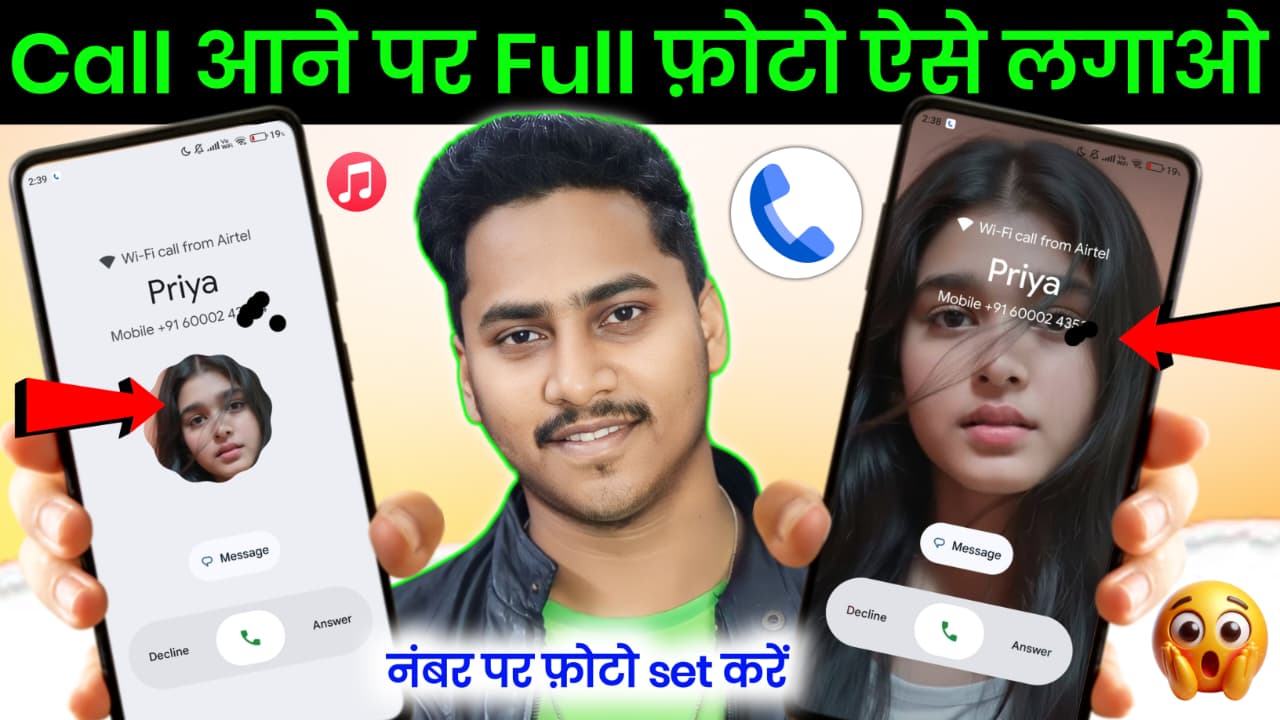
How to Set Full Screen Photo in Caller Background
Customizing your smartphone is one of the best ways to make it feel more personal and stylish. One popular customization is setting a full screen photo as the caller background, so whenever someone calls you, their picture appears in full screen instead of a small thumbnail. This feature not only looks attractive but also helps you quickly पहचान who is calling.
In this detailed guide, you will learn how to set full screen caller photos on Android, including built-in methods and third-party apps.
What is Full Screen Caller Photo?
A full screen caller photo means when someone calls you, their image covers the entire screen instead of appearing as a small circle or icon. This feature enhances your calling experience and makes your phone look modern and visually appealing.
Method 1: Set Full Screen Caller Photo Using Default Contacts App
Most Android phones allow you to add a photo to a contact. However, to make it appear in full screen, you need to follow these steps carefully.
Step-by-Step Guide:
-
Open your Contacts App
-
Select the contact you want to edit
-
Tap on Edit (✏️ icon)
-
Click on Add Photo
-
Choose a high-quality image from your gallery
-
Adjust and crop the image properly
-
Tap Save
Important Tips:
-
Use high-resolution images (HD quality)
-
Avoid small or blurry images
-
Try portrait images for better fit
👉 Note: On some phones (like Samsung, Vivo, Oppo), full screen display works automatically. But on stock Android, it may still show a small image.
Method 2: Use Google Contacts Sync Trick
Sometimes the issue is due to syncing. Follow this method:
-
Save contact in Google Account
-
Add a high-quality photo from Google Contacts (web or app)
-
Sync your phone
This improves image quality and increases chances of full screen display.
Method 3: Use Third-Party Apps (Best Method)
If your phone does not support full screen caller photos, you can use apps.
1. Using Truecaller
Steps:
-
Install Truecaller from Play Store
-
Open the app and allow permissions
-
Go to Settings → Caller ID
-
Enable full screen caller ID
Benefits:
-
Shows caller photo in full screen
-
Identifies unknown numbers
-
Spam call blocking
2. Full Screen Caller ID Apps
You can search apps like:
-
Full Screen Caller ID
-
HD Caller ID
-
Caller Screen Dialer
Steps:
-
Install the app
-
Grant permissions (Contacts, Calls)
-
Select a contact
-
Set full screen image
Method 4: Use Dialer Settings (For Some Phones)
Some smartphones offer this feature in settings.
Try This:
-
Open Phone Dialer App
-
Go to Settings
-
Look for:
-
Caller ID Display
-
Incoming Call Style
-
-
Enable Full Screen Mode
👉 This option is available in brands like:
-
Samsung
-
MIUI (Xiaomi)
-
Realme UI
Why Full Screen Caller Photo Not Showing?
If your photo is not showing in full screen, here are common reasons:
1. Low Resolution Image
Use HD images (at least 1080×1080)
2. Contact Saved in SIM
SIM contacts don’t support photos. Save them in phone or Google account.
3. Phone UI Limitation
Some Android versions don’t allow full screen caller images.
4. App Restrictions
Default dialer may not support it
Best Tips for Perfect Full Screen Caller Photo
-
Use portrait images (vertical)
-
Avoid zooming too much
-
Use clear face images
-
Save contacts in Google account
-
Use third-party apps if needed
Advantages of Full Screen Caller Background
-
Better visibility of caller
-
Stylish and modern UI
-
Easy identification
-
Personalized phone experience
Disadvantages
-
Some apps may show ads
-
Requires permissions
-
Not supported on all devices
App Link – 