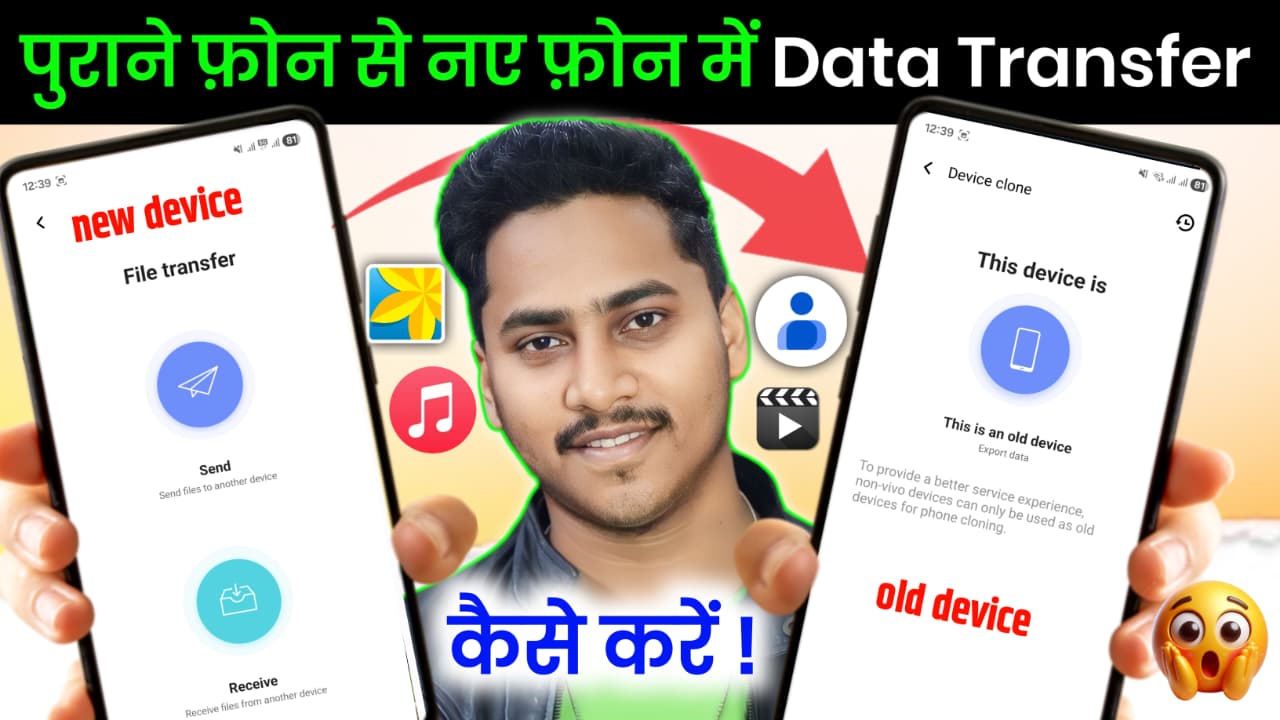
How to Send All Data from Old Phone to New Phone
Hey Friends if your want to send all data from your old phone to a new phone step by step Switching to a new smartphone is always exciting, but transferring all your data from the old phone can feel confusing. The good news is that today’s technology makes it very easy to move everything—contacts, photos, videos, apps, messages, and even settings—without losing anything.
In this complete guide, you will learn how to send all data from your old phone to a new phone step by step, using different methods for Android and iPhone.
What Data Can You Transfer?
Before starting, it’s important to know what you can transfer:
-
Contacts
-
Photos & Videos
-
Apps & App Data
-
Messages (SMS & WhatsApp)
-
Call Logs
-
Music & Files
-
Settings (Wi-Fi, wallpaper, etc.)
Method 1: Transfer Data Using Built-in Phone Setup (Best Method)
When you turn on your new phone for the first time, it usually gives you an option to copy data from your old device.
Steps:
-
Turn on your new phone
-
Connect both phones to Wi-Fi
-
Select Copy Apps & Data
-
Choose your old phone (Android or iPhone)
-
Connect via cable or wireless
-
Select data you want to transfer
-
Tap Transfer
👉 This is the easiest and safest method.
Method 2: Transfer Using Google Account (Android Users)
If you are using Android, your Google account can automatically sync most of your data.
Steps:
-
On old phone:
-
Go to Settings → Accounts → Google
-
Turn ON sync for Contacts, Photos, etc.
-
-
On new phone:
-
Login with same Google account
-
Enable sync
-
Your data will automatically download.
Apps Used:
-
Google Drive
-
Google Photos
Method 3: Transfer Data Using Phone Clone Apps
Many smartphone brands provide their own apps for data transfer.
Popular Apps:
-
Smart Switch (Samsung)
-
Mi Mover
-
Clone Phone
Steps:
-
Install the app on both phones
-
Open app on both devices
-
Select:
-
Old phone → Sender
-
New phone → Receiver
-
-
Scan QR code
-
Select data
-
Start transfer
👉 No internet needed (uses Wi-Fi Direct)
Method 4: Transfer Using SHAREit / Xender
You can also use file-sharing apps.
Apps:
-
SHAREit
-
Xender
Steps:
-
Install app on both phones
-
Open app and connect devices
-
Select files (photos, videos, apps)
-
Tap Send
👉 Fast but may not transfer app data fully
Method 5: Transfer WhatsApp Data
WhatsApp data is very important, so follow carefully.
Steps:
-
On old phone:
-
Open WhatsApp
-
Go to Settings → Chats → Chat Backup
-
Backup to Google Drive or iCloud
-
-
On new phone:
-
Install WhatsApp
-
Login with same number
-
Tap Restore Backup
-
Method 6: Transfer Using Cable (Fastest Method)
You can directly connect both phones using a USB cable.
Steps:
-
Connect both phones using OTG cable
-
Select File Transfer mode
-
Choose data
-
Start transfer
👉 Fast and secure method
Method 7: Transfer from Android to iPhone
If you are switching from Android to iPhone, use:
-
Move to iOS
Steps:
-
Install Move to iOS on Android
-
Start iPhone setup
-
Select Move Data from Android
-
Enter code
-
Transfer data
Important Tips Before Transferring
-
Charge both phones (at least 50%)
-
Use stable Wi-Fi connection
-
Backup important data
-
Keep phones close together
-
Don’t interrupt transfer process
Common Problems & Solutions
1. Transfer Stuck
👉 Restart both phones and try again
2. Data Missing
👉 Check backup and sync settings
3. Slow Transfer
👉 Use cable method instead of wireless
Advantages of Data Transfer Methods
-
Saves time
-
No data loss
-
Easy to use
-
Works for all phone brands
App Link – 